L TX — User Manual
Twisted Cable — TC Link Send Four-lane mono/stereo Link Audio sender for VCV Rack 2.
5 HP panel; listed as TC Link Send in Rack’s module browser.
Version 2.0.2 | 07-11-2026

Panel illustration in the Default theme; display states and channel names are examples.
In this manual
- Overview
- Requirements
- Getting Started
- Themes
- Lane Connections
- Channel Names
- Display States
- Multiple senders
- Signal Levels
- Troubleshooting
- Known Limits
Overview
L TX publishes Rack audio to other Link Audio applications. Each module provides four independent lanes. Every lane can publish mono or stereo audio and has its own editable channel name.
L TX works on its own or alongside TC LINK. It can be placed anywhere in the patch; no core module or expander connection is required.
The active TC LINK supplies the companion’s theme. Without an active core, the companion uses its saved local theme selected from the context menu. The TC logo retains its fixed amber/white branding.
Requirements
- A Link Audio-capable receiving application
- Link and Link Audio enabled in the receiving application
- Local-network permission for Rack and the receiving application
All TC Link modules in the Rack instance share one Link participant. Adding more senders, receivers or cores does not create extra peers.
TC LINK’s RUN control starts and stops its clocks and click. It does not mute Link Audio. Use your Rack mixer or the other application’s audio routing to mute the network signal.
Getting Started
Install TC Link through VCV Library. In Rack’s Library menu, sign in with the VCV account that owns TC Link and install any available updates.
- Add L TX anywhere in the patch.
- Enable Link Audio in the receiving application.
- Patch a Rack audio signal into a L TX lane.
- Select the corresponding
TC SEND #channel in the receiving application. - Enable monitoring or routing in the receiving application.
The module status display shows connection activity above PEERS: n. The
peer count is the number of other Link participants, not the number of audio
subscribers. See Display States for the other states.
Themes
When following an active TC LINK core, choose Theme from the core’s right-click menu. The companion shows Theme follows TC LINK instead of a local theme selector.
Without a core, right-click the companion and open Theme:
- Dark: Default, Copper, Glacier, Moss and Amethyst.
- Light: Medi and Brit.
The companion saves its local choice and restores it when the core is removed. Choose Use as default to use the selected theme for newly added TC Link modules; existing modules keep their saved choices. An active core still controls the appearance of its companions.
Theme changes do not alter sound, timing or the fixed TC branding colours.
Lane Connections
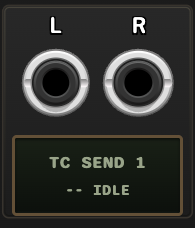
A lane groups its L/R inputs with the channel name shown underneath.
Each of the four lanes contains an L and R input.
| Connection | Published format |
|---|---|
| L only | Mono |
| L and R | Stereo |
| R only | Stereo, with an unpatched L side producing 0 V |
| Neither | No audio is sent |
For a conventional mono signal, use the L input. For stereo, connect both
L and R.
Example: send a stereo drum bus. Patch your mixer’s left and right
outputs to lane 1, rename it Drums, then select that channel in the
receiving application. Keep the mixer level inside ±5 V to avoid clipping.
The second display line reports the current lane format and state:
-- IDLEMONO IDLEMONO SENDSTEREO IDLESTEREO SENDMONO ERRORSTEREO ERROR
Channel Names
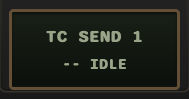
Click the name to label the source for the receiving musician or application.
Default names
The first L TX module publishes:
TC SEND 1TC SEND 2TC SEND 3TC SEND 4
Additional L TX modules continue the numbering automatically:
- Second module:
TC SEND 5–TC SEND 8 - Third module:
TC SEND 9–TC SEND 12
The assigned group and channel names are saved with the Rack patch.
Renaming a channel
- Click the lane display.
- Type the new channel name.
- Press Enter, or click elsewhere to accept it.
The updated name appears to Link Audio subscribers. Use a short, distinctive
label such as Drums, Bass or Pads so it is easy to recognise on another
device. The name limit is 256 UTF-8 bytes; accented characters and emoji may
use more than one byte. Characters are not split when a long name is shortened.
Rack preset loading, pasted module settings and undo/redo restore saved names. An already-added module retains its allocated group; a restored empty name returns that lane to its generated default name.
Disconnect behaviour
If one jack remains connected, the custom name is preserved.
When the final connected jack is removed:
- Audio transmission stops.
- The channel name returns to its generated
TC SEND #name. - The channel remains published and available for later reuse.
- Reconnecting a signal resumes under the restored default name.
Display States
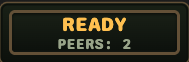
Connection state appears above the Link peer count. Check individual lanes for channel activity.
Module status display
| Display | Meaning |
|---|---|
NO LINK |
Shared Link service is unavailable |
AUDIO OFF |
Shared Link session exists, but Link Audio is disabled |
READY |
Service is available with peers; no lane is active |
WAITING |
No peers, or a connected/selected lane is waiting for audio |
SENDING |
At least one lane is successfully sending audio |
ERROR |
A lane reports an audio-data, buffer or commit problem |
BYPASSED |
This module is bypassed; other modules may keep the session active |
PEERS: n counts other Link participants, including those that may not be
sending or receiving audio. It does not identify or count listeners to a lane.
Adding more TC Link modules in this Rack instance does not increase this count.
Lane display
The top line shows the published channel name. The bottom line shows format and send state.
| State | Meaning |
|---|---|
-- IDLE |
No input jack is connected |
MONO IDLE |
Mono input is connected, but no audio buffer was committed |
STEREO IDLE |
Stereo input is connected, but no audio buffer was committed |
MONO SEND |
Mono audio is being committed successfully |
STEREO SEND |
Stereo audio is being committed successfully |
MONO ERROR / STEREO ERROR |
Buffer or commit failure |
An unconnected lane’s name and -- IDLE state use the theme’s muted colour.
Connected lanes use the theme’s active colours.
Multiple senders
Multiple send modules may be used in one patch.
- Each receives the next available four-channel group.
- Channel numbering is automatic.
- Removing a module releases its group for later use.
- Adding send modules does not increase the Link network peer count.
- Adding or removing TC LINK does not close the audio session or reset channel names.
- Add TC LINK when you need tempo, transport or timing outputs.
Signal Levels
L TX follows Rack’s standard audio range:
- Input range: ±5 V
- Values outside ±5 V are clipped before transmission
- Mono and stereo channels are transmitted as Link Audio PCM streams
Set gain in Rack before L TX if the receiving application requires a different operating level.
Troubleshooting
A module is unavailable or reports an access problem
Confirm that Rack’s Library menu is signed into the account that owns TC Link, then refresh the Library and install any available updates. If the problem remains, contact VCV support at support@vcvrack.com.
The receiving application lists the channel but receives silence
- Confirm that a L TX input is connected.
- Confirm that the lane shows
MONO SENDorSTEREO SEND. - Enable monitoring or routing for the subscribed channel.
- Check the Link Audio latency/buffer setting in the receiving application.
The lane stays IDLE
- Check that a lane input is connected.
- Confirm that Link and Link Audio are enabled in the receiving application.
WAITINGcan mean that no receiver has subscribed yet. A peer count alone does not confirm an audio subscriber;SENDINGconfirms successful sending.- Select the correct named channel in the receiving application.
- Check the receiving application’s audio and buffer configuration.
The lane shows ERROR
- Check the audio block and latency configuration.
- Confirm compatible sample rates.
- Remove and reselect the channel in the receiving application.
A custom name disappeared
Custom names intentionally reset to TC SEND # when the final lane jack is
disconnected.
Known Limits
- Link Audio requires buffering and is not a zero-latency audio connection.
- Reliable real-time performance depends on the network, audio interface, host buffer size and Link Audio latency setting.
- Occasional network underruns may produce silence or dropouts.
Trademark Notice
Ableton, Link and Ableton Live are trademarks of Ableton AG. TC Link is an independent Twisted Cable product and is not affiliated with or endorsed by Ableton AG.