L RX — User Manual
Twisted Cable — TC Link Receive Four-lane Link Audio receiver for VCV Rack 2.
5 HP panel; listed as TC Link Receive in Rack’s module browser.
Version 2.0.2 | 07-11-2026

Panel illustration in the Default theme; display states and channel names are examples.
In this manual
- Overview
- Requirements
- Getting Started
- Themes
- Selecting Channels
- Outputs
- Display States
- Channel Assignment Rules
- Channel Loss and Recovery
- Multiple receivers
- Troubleshooting
- Known Limits
Overview
L RX subscribes to Link Audio channels and converts them to Rack audio.
Each module provides four independent receive lanes with stereo L and R
outputs.
Channels are selected directly from each lane display. L RX follows the channel order and names advertised by the Link Audio applications on the network.
L RX works on its own or alongside TC LINK. It can be placed anywhere in the patch; no core module or expander connection is required.
The active TC LINK supplies the companion’s theme. Without an active core, the companion uses its saved local theme selected from the context menu. The TC logo retains its fixed amber/white branding.
Requirements
- At least one Link Audio publisher
- Link and Link Audio enabled in the publishing application
- Local-network permission for Rack and the publishing application
All TC Link modules in the Rack instance share one Link participant. Adding more senders, receivers or cores does not create extra peers.
TC LINK’s RUN control starts and stops its clocks and click. It does not mute Link Audio. Use your Rack mixer or the other application’s audio routing to mute the network signal.
Getting Started
Install TC Link through VCV Library. In Rack’s Library menu, sign in with the VCV account that owns TC Link and install any available updates.
- Add L RX anywhere in the patch.
- Enable Link Audio in the publishing application.
- Click a L RX lane display.
- Select the desired published channel.
- Patch the lane’s
LandRoutputs into Rack.
The module status display shows connection activity above PEERS: n. The
peer count is the number of other Link participants, not the number of audio
subscribers. See Display States for the other states.
Themes
When following an active TC LINK core, choose Theme from the core’s right-click menu. The companion shows Theme follows TC LINK instead of a local theme selector.
Without a core, right-click the companion and open Theme:
- Dark: Default, Copper, Glacier, Moss and Amethyst.
- Light: Medi and Brit.
The companion saves its local choice and restores it when the core is removed. Choose Use as default to use the selected theme for newly added TC Link modules; existing modules keep their saved choices. An active core still controls the appearance of its companions.
Theme changes do not alter sound, timing or the fixed TC branding colours.
Selecting Channels
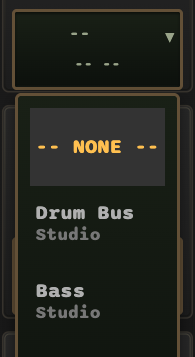
Example channel list. Your menu shows the sources advertised on your network.
Click a lane display to open its channel menu.
The menu contains:
-- NONE --to clear the lane- Every currently advertised Link Audio channel
- Channel and peer/application names where supplied by the publisher
The menu width matches the lane display. Long channel names remain at a consistent font size and are clipped. Hover over a long name to scroll it.
The selected channel is saved with the Rack patch. Loading presets, pasting settings and undo/redo also restore selections on existing modules.
Clearing a lane
Select -- NONE --.
This removes the stored channel assignment, clears buffered audio and changes
the lane to the unassigned -- -- state.
Outputs
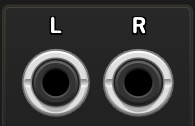
Use L for a mono destination, or both outputs for stereo.
Each lane contains L and R outputs.
| Received format | Output behaviour |
|---|---|
| Mono | The mono signal is available from both L and R |
| Stereo | Left and right channels appear at their corresponding outputs |
| No data, LOST or ERROR | Both outputs produce 0 V |
Received audio is scaled to Rack’s standard ±5 V audio range.
Example: receive a stereo instrument. Select its published channel in lane 1, connect L and R to a stereo mixer channel, and bring up that channel’s level. For a mono source, either output carries the same signal.
Display States
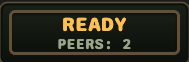
Connection state appears above the Link peer count. The lane displays identify selected sources.
Module status display
| Display | Meaning |
|---|---|
NO LINK |
Shared Link service is unavailable |
AUDIO OFF |
Shared Link session exists, but Link Audio is disabled |
READY |
Service is available with peers; no lane is active |
WAITING |
No peers, or a connected/selected lane is waiting for audio |
RECEIVING |
At least one lane is receiving valid audio |
LOST |
A selected source is no longer advertised |
ERROR |
A lane reports an audio-data, buffer or commit problem |
BYPASSED |
This module is bypassed; other modules may keep the session active |
PEERS: n counts other Link participants, including those that may not be
sending or receiving audio. It does not identify or count listeners to a lane.
Adding more TC Link modules in this Rack instance does not increase this count.
Lane display
The top line shows the selected channel name. The lower line shows its format and receive state.
| Display | Meaning |
|---|---|
-- -- |
No channel is selected |
-- WAIT |
Channel is selected; waiting for its first valid audio block |
MONO RECV |
Receiving mono audio |
STEREO RECV |
Receiving stereo audio |
-- LOST |
The selected channel is no longer advertised |
-- ERROR |
Invalid or unsupported receive data |
MONO OVERFLOW / STEREO OVERFLOW |
Receive capacity exceeded; some audio was dropped |
LOST is different from an unassigned lane. A LOST lane retains the selected
channel ID so it can recover if that same channel becomes available again.
Channel Assignment Rules
A Link Audio channel can be assigned to only one L RX lane across the patch.
- Channels already used by another lane are unavailable in the menu.
- Selecting
-- NONE --releases the assignment. - Reassigning a lane clears its old buffered audio.
- Multiple different channels from the same application can be received at the same time.
Preset or patch restoration also enforces uniqueness. If a restored channel is assigned to another receive module, that other assignment is cleared. Undoing that preset change restores only the module you edited; you must reselect the channel on the other module if you want its old routing back.
To send one received source to several destinations inside Rack, split or mult its L/R outputs after a single receive lane.
Channel Loss and Recovery
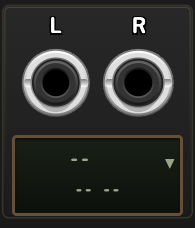
Each lane keeps its source selection if that channel temporarily disappears.
If a selected publisher or channel disappears:
- The lane changes to
-- LOST. - Buffered audio is cleared.
- Both outputs produce 0 V.
- The selection remains stored.
If the same channel ID returns, L RX reconnects and returns to WAIT, then
to MONO RECV or STEREO RECV when audio arrives.
To discard a missing assignment manually, open the lane menu and select
-- NONE --.
Multiple receivers
Multiple receive modules may be used in one patch.
- Every module adds four receive lanes.
- All modules share the same discovered channel list.
- Channel uniqueness is enforced across every L RX module.
- Adding receive modules does not increase the Link network peer count.
- Adding or removing TC LINK does not close the audio session or reset channel selections.
- Add TC LINK when you need tempo, transport or timing outputs.
Troubleshooting
A module is unavailable or reports an access problem
Confirm that Rack’s Library menu is signed into the account that owns TC Link, then refresh the Library and install any available updates. If the problem remains, contact VCV support at support@vcvrack.com.
The channel menu is empty
- Confirm that the module is added to the patch and Rack is processing audio.
- Confirm that Link Audio is enabled in the publishing application.
- Confirm that the publisher is advertising at least one channel.
- Check local-network permissions and network connectivity.
The lane stays WAIT
- Confirm that the publishing application is actively sending audio.
- Check its monitoring, routing and Link Audio latency settings.
- Confirm that the publisher reports a valid sample rate.
The lane shows LOST
The lane still has a selection, but that channel has disappeared. Restore the
publisher or select -- NONE -- to clear the lane.
The lane shows ERROR
- Confirm that the source publishes mono or stereo audio.
- Confirm that the publisher reports a valid sample rate.
- Clear and reselect the source channel.
Audio drops out intermittently
- Check Rack’s audio-interface buffer size and CPU load.
- If the publishing application offers Link Audio buffering or latency controls, review those settings there. L RX has no adjustable Link Audio latency control.
- Use a stable wired or dedicated network where possible.
- Check audio-interface buffer stability and CPU load.
Known Limits
- Incoming audio is resampled to Rack’s current sample rate.
OVERFLOWmeans an incoming block exceeded the available receive capacity and some audio was dropped. Check the publisher’s buffer configuration.- Link Audio requires buffering and adds latency.
- A temporary receive underrun outputs silence until more audio arrives.
- Dropout behaviour depends on network stability, host buffering, audio hardware and driver configuration.
Trademark Notice
Ableton, Link and Ableton Live are trademarks of Ableton AG. TC Link is an independent Twisted Cable product and is not affiliated with or endorsed by Ableton AG.