# TC LINK — User Manual
**Twisted Cable — TC LINK**
Ableton Link timing, transport, musical structure and clock generation for
VCV Rack 2.
10 HP panel; listed as **TC Link** in Rack’s module browser.
Version 2.0.2 | 07-11-2026
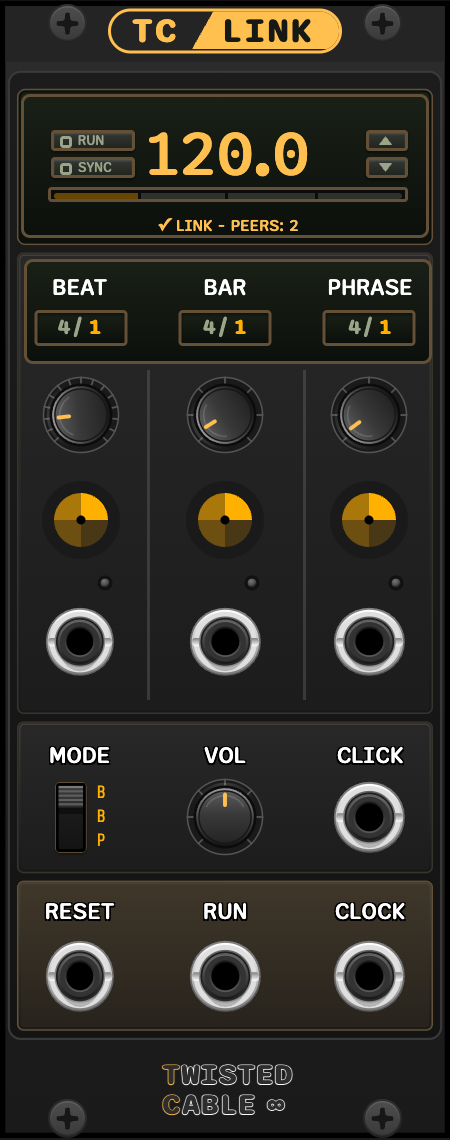 *Panel illustration in the Default theme; display states and channel names are examples.*
---
## In this manual
1. [Overview](#overview)
2. [Getting Started](#getting-started)
3. [Themes](#themes)
4. [Transport Display](#transport-display)
5. [Musical Structure](#musical-structure)
6. [Click Section](#click-section)
7. [Outputs](#outputs)
8. [CLKD Integration](#clkd-integration)
9. [Link Status](#link-status)
10. [Multiple TC LINK Modules](#multiple-tc-link-modules)
11. [Using the audio companions](#using-the-audio-companions)
12. [Troubleshooting](#troubleshooting)
13. [Known Limits](#known-limits)
---
## Overview
TC LINK is the timing core of the TC Link plugin. It joins an Ableton Link
session and converts the shared tempo, phase and transport into Rack clocks,
triggers, gates, visual progress and an audible click.
The module provides an integrated beat, bar and phrase workflow:
- Beat, bar and phrase counters
- Three progress radars
- Beat, bar and phrase trigger outputs
- Selectable beat, bar or phrase click
- Independent structural lengths
TC LINK works without another Link peer. In that state it provides the same
local timing functions while remaining ready for another Link application to
join.
---
## Getting Started
Install TC Link through VCV Library. In Rack’s **Library** menu, sign in with
the VCV account that owns TC Link and install any available updates.
1. Add one **TC LINK** module to the patch.
2. Enable Link in Ableton Live or another Link-enabled application.
3. Confirm that the TC LINK peer display changes from `-- LINK` to
`✓ LINK`.
4. Set the desired tempo from TC LINK or any connected Link application.
5. Patch `CLOCK`, `RUN` and `RESET` to the transport inputs of a sequencer.
6. Use the beat, bar and phrase outputs where structural triggers are needed.
**L TX** and **L RX** work independently for network audio. Add TC LINK
when you also need tempo controls, transport or timing outputs. All three
module types share one Link participant and may sit anywhere in the patch.
---
## Themes
Right-click the module and open **Theme**:
- **Dark:** Default, Copper, Glacier, Moss and Amethyst.
- **Light:** Medi and Brit.
Choose **Use as default** to use the selected theme for newly added TC Link
modules. Existing modules keep their saved choices.
The active TC LINK sets the theme for all companions. Without an active core,
a companion uses its saved local choice. Theme changes do not alter sound,
timing or the fixed TC branding colours.
---
## Transport Display
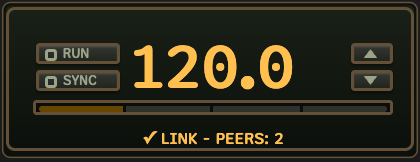 *Set the session tempo and transport from the upper display. The up/down
buttons beside the BPM value adjust tempo in 0.1 BPM steps.*
The upper display contains the session tempo, RUN and SYNC controls, the
up/down tempo buttons, the quantum phase bar and Link peer status.
### BPM
The large value shows the current Link session tempo.
To change tempo:
- Place the mouse anywhere inside the upper TC LINK display, including over
RUN, SYNC, the phase bar or the tempo buttons.
- Press the keyboard **Up** or **Down** arrow to change tempo in **1 BPM** steps.
- Click **▲** or **▼** immediately to the right of the BPM digits to change
tempo by **0.1 BPM per click**, including the decimal digit. The two small
rectangular buttons use the same theme and styling as RUN and SYNC.
- Type a value in `xxx.x` format for direct entry while the mouse is inside
the display.
- Press **Enter** to accept an incomplete entry.
- Press **Escape** to cancel.
Keyboard capture ends when the mouse leaves the display. RUN and SYNC retain
their transport functions; the tempo buttons change only the session tempo.
The supported session range is 20.0–999.0 BPM. A local tempo change is shared
with the other Link peers.
### RUN
The RUN square controls TC LINK transport.
- Lit: transport is running.
- Unlit: transport is stopped, or a quantized start is still waiting.
A start may wait for the Link quantum before playback begins. Press RUN
again during that wait to cancel the pending start.
When stopped, the counters and radars return to their starting positions,
clock and click output stop, and `RUN` outputs 0 V. The quantum phase bar
continues moving at reduced brightness so the underlying Link timing remains
visible.
### SYNC
SYNC enables Ableton Link Start/Stop Sync.
- Lit: TC LINK sends and follows Link start/stop changes.
- Unlit: tempo and phase remain linked, but transport changes are local.
RUN and SYNC are saved with the Rack patch and restored by preset loading,
paste and undo/redo. Both controls are also available
from the module’s right-click menu under **Link transport**. A new shared
session starts with RUN and SYNC disabled. Adding a fresh core to an existing
audio session preserves that session’s transport and SYNC state. Loading saved
module settings can restore different RUN and SYNC values.
### Quantum phase bar
The four-segment bar shows position within the Link quantum. The
**beats-per-bar** control sets that quantum, so changing it changes the length
of the complete phase-bar cycle.
Bars per phrase and phrase count do not change the Link quantum. They define
TC LINK’s local musical structure above the shared beat timeline.
---
## Musical Structure
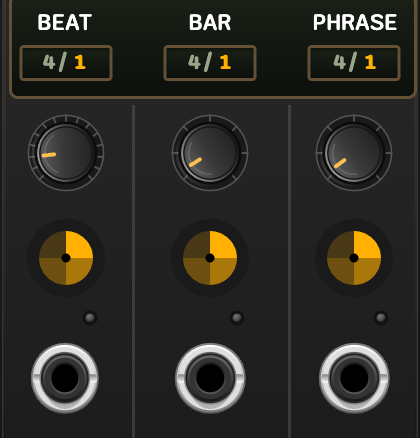 *BEAT, BAR and PHRASE each pair a length control with progress and a trigger output.*
The centre display is divided into three columns.
| Column | Range | Function |
|--------|-------|----------|
| **BEAT** | 2–16 | Beats per bar and Link quantum |
| **BAR** | 1–64 | Bars per phrase |
| **PHRASE** | 1–96 | Phrases in the complete structural cycle |
Each column contains:
- A maximum/current counter
- A length control
- A progress radar in the selected theme’s accent colour
- A 10 V trigger output
- A trigger indicator
The counters start at 1. On the first audible beat, the beat display remains
on beat 1. Bar and phrase transitions follow the same first-step convention.
### Structural relationships
```
BEAT count × BAR count × PHRASE count
↓
complete TC LINK structural cycle
```
**Example: a 16-bar passage.** Set BEAT to 4, BAR to 4 and PHRASE to 4.
Each bar contains four beats, each phrase contains four bars, and the full
cycle contains four phrases. Patch BAR to an accent or pattern-change input;
use PHRASE for a change every four bars.
Changing **BEAT** realigns the local structure to the selected Link quantum.
Changing **BAR** or **PHRASE** changes the higher-level TC LINK structure
without changing the shared Link quantum.
---
## Click Section
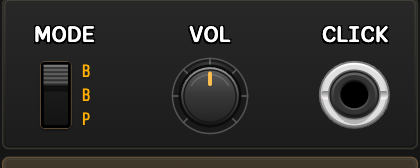 *Choose the click interval, set its level and patch CLICK to your mixer.*
### MODE
The three-position MODE switch selects the click interval:
- **Beat** — click on every beat
- **Bar** — click at the start of every bar
- **Phrase** — click at the start of every phrase
The first click of the selected structure is accented with the higher click.
### VOL
Sets click output level from 0–100%. Route CLICK through a mixer or audio
output module to hear it. VOL affects only this metronome, not the rest of
your patch or the audio companions.
### CLICK
Audio click output. The output stops immediately when transport stops and
resumes in phase with the Link timeline.
---
## Outputs
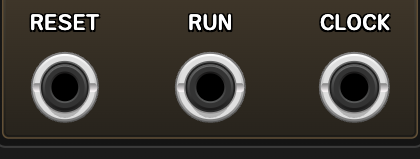 *The lower transport outputs connect TC LINK to a sequencer.*
| Output | Signal |
|--------|--------|
| **BEAT** | 10 V, 1 ms trigger at each beat |
| **BAR** | 10 V, 1 ms trigger at the first beat of each bar |
| **PHRASE** | 10 V, 1 ms trigger at the first beat of each phrase |
| **CLICK** | Audible click at the interval selected by MODE |
| **RESET** | 10 V, 1 ms reset trigger when transport stops |
| **RUN** | 10 V while running, 0 V while stopped |
| **CLOCK** | Selectable 1–96 PPQN Link-synchronised clock, 10 V pulses up to 1 ms |
`CLOCK`, `RESET` and `RUN` are suitable for driving sequencers that accept
standard Rack clock, reset and gate levels. Clock pulses are limited to half
the clock period at high rates, preserving a low interval between pulses.
**Choose the resolution your sequencer expects.** PPQN means pulses per
quarter note: 1 PPQN gives one pulse per beat, while 24 PPQN gives 24 pulses
per beat. A mismatched setting makes a sequencer run at the wrong speed.
The clock resolution submenu offers
1, 2, 4, 8, 12, 24, 48 and 96 PPQN. New instances default to 1 PPQN. Each
module stores its selection in the patch; **Set as global default** applies the
current selection to subsequently created instances. Unchecking **Set as
global default** removes the override, so new instances return to the factory
default of 1 PPQN. Existing modules retain their patch-saved resolution.
---
## CLKD Integration
Place an Impromptu Modular CLKD module directly against either side of TC LINK
to use the CLKD integration options in the right-click menu.
Enable **Run CV input is level sensitive** in CLKD. This is required for tight
transport integration with TC LINK’s persistent RUN output.
### Auto-patch CLKD
When enabled, **Auto-patch CLKD** connects any empty CLKD transport inputs:
| TC LINK output | CLKD input | Cable |
|----------------|------------|-------|
| **RESET** | Reset | Red |
| **RUN** | Run | Green |
| **CLOCK** | External clock | Blue |
Existing input cables are not replaced. Automatically created cables remain
ordinary Rack cables and can be moved or removed normally.
### Run from CLKD
When **Run from CLKD** is enabled, pressing the RUN button on an adjacent CLKD
also toggles TC LINK transport. Disable it when CLKD’s RUN button should not
control TC LINK.
**Auto-patch CLKD** and **Run from CLKD** are global preferences rather than
patch settings. Changing an option affects this core and the default for newly added
TC LINK modules; it does not update other existing cores.
---
## Link Status
 *The peer line counts other Link applications, not your companion modules.*
The line below the quantum phase bar reports the network state.
| Display | Meaning |
|---------|---------|
| `-- LINK - PEERS: 0` | TC LINK is active but no other Link peer is connected |
| `✓ LINK - PEERS: #` | One or more external Link peers are connected |
The peer count represents other Link participants visible to TC LINK.
Adding L TX, L RX or disabled duplicate cores does not create additional
network peers.
---
## Multiple TC LINK Modules
Only one TC LINK core may be active in a patch.
If another TC LINK is added while a non-bypassed core is already active:
- Its panel is dimmed.
- `DISABLED` is shown vertically.
- All outputs remain at 0 V.
- It cannot change tempo, RUN or SYNC.
- Its counters, radars and click do not run.
If the active core is removed or bypassed, the oldest remaining non-bypassed
core takes over. If no eligible core remains, a non-bypassed audio module
maintains shared audio processing. The Link connection and channel selections
are retained; removing the last core does not stop network audio.
Unbypassing an older core can return timing control to it. Bypassed modules
cannot own shared audio processing. If all modules are bypassed, the Link
connection stays enabled, but those modules do not process audio. The session
closes when its last module is removed.
---
## Using the audio companions
TC LINK, L TX and L RX use one shared Link and Link Audio session. A core is
optional for sending and receiving audio.
- **TC Link Send**, titled **L TX** on its panel, publishes Rack audio as
Link Audio channels.
- **TC Link Receive**, titled **L RX** on its panel, subscribes to Link Audio
channels and converts them to Rack audio.
- Adding more modules does not create additional Link peers.
- Adding or removing a core preserves the existing audio session and channels.
- TC LINK adds timing and transport controls to that session.
- Companions can be placed anywhere in the patch.
See the separate L TX and L RX manuals for channel assignment and display
states: [L TX manual](TC-Link-Send_manual.md) and
[L RX manual](TC-Link-Receive_manual.md).
---
## Troubleshooting
### A module is unavailable or reports an access problem
Confirm that Rack’s **Library** menu is signed into the account that owns
TC Link, then refresh the Library and install any available updates. If the
problem remains, contact VCV support at support@vcvrack.com.
### No peer is shown
- Confirm that Link is enabled in the other application.
- Confirm that both applications have permission to use the local network.
- Confirm that both devices are on the same reachable network.
### A sequencer does not follow CLOCK
- Patch all three transport signals where supported: `RESET`, `RUN`, `CLOCK`.
- Confirm that the destination expects the selected PPQN or configure its clock input
accordingly.
- Start from a stopped/reset state before checking the first beat.
### Link tempo follows but transport does not
Enable **SYNC** in TC LINK and Start/Stop Sync in the other Link application.
### CLKD does not follow or control TC LINK transport
- Confirm that CLKD is directly adjacent to TC LINK.
- Enable **Run CV input is level sensitive** in CLKD.
- Confirm that `RESET`, `RUN` and `CLOCK` are patched to the corresponding CLKD
inputs.
- Enable **Run from CLKD** if the CLKD RUN button should control TC LINK.
### A second TC LINK is disabled
This is intentional. Only one core is active. Remove the active core to
promote the oldest disabled instance.
---
## Known Limits
- Network audio latency is controlled partly by the Link Audio host
application and network conditions.
- Dropout and underrun performance depends on network stability, audio
hardware, driver configuration and buffering.
- Controlled latency and dropout measurements should be made with a stable
network and professional audio interface.
---
## Trademark Notice
Ableton, Link and Ableton Live are trademarks of Ableton AG. TC Link is an
independent Twisted Cable product and is not affiliated with or endorsed by
Ableton AG.